
Scan a bill or receipt
Scan with the camera or send an image or PDF from Mail, Files, Photos, and other apps to Holty on iPhone or Android.
Holty can read a recurring bill or an everyday receipt and save it to the correct place in Money. You can scan a paper document inside Holty, choose an existing image, or send an image or PDF from another app.
The screenshots in this guide use anonymized sample household and payment details.
What Holty creates
| What you scan | Where it appears | What happens |
|---|---|---|
| Store, restaurant, or everyday purchase receipt | Money → Spending | Holty creates an expense. |
| Invoice, account statement, or recurring service bill | Money → Bills | Holty creates a bill or updates a matching existing bill. |
| Receipt from an active shopping trip | Shopping | Use Scan receipt when ending the trip so Holty can compare the receipt with the shopping list. |
A repeated bill may be updated
Holty checks for an existing bill with matching account, provider, category, and amount details. If it finds one, the scan can update that bill's amount, next due date, payment details, and attachment instead of creating a duplicate.
Scan inside Holty
These screenshots show iPhone. Android follows the same workflow, although button placement and the system camera or gallery may look different.
Capture or choose the document
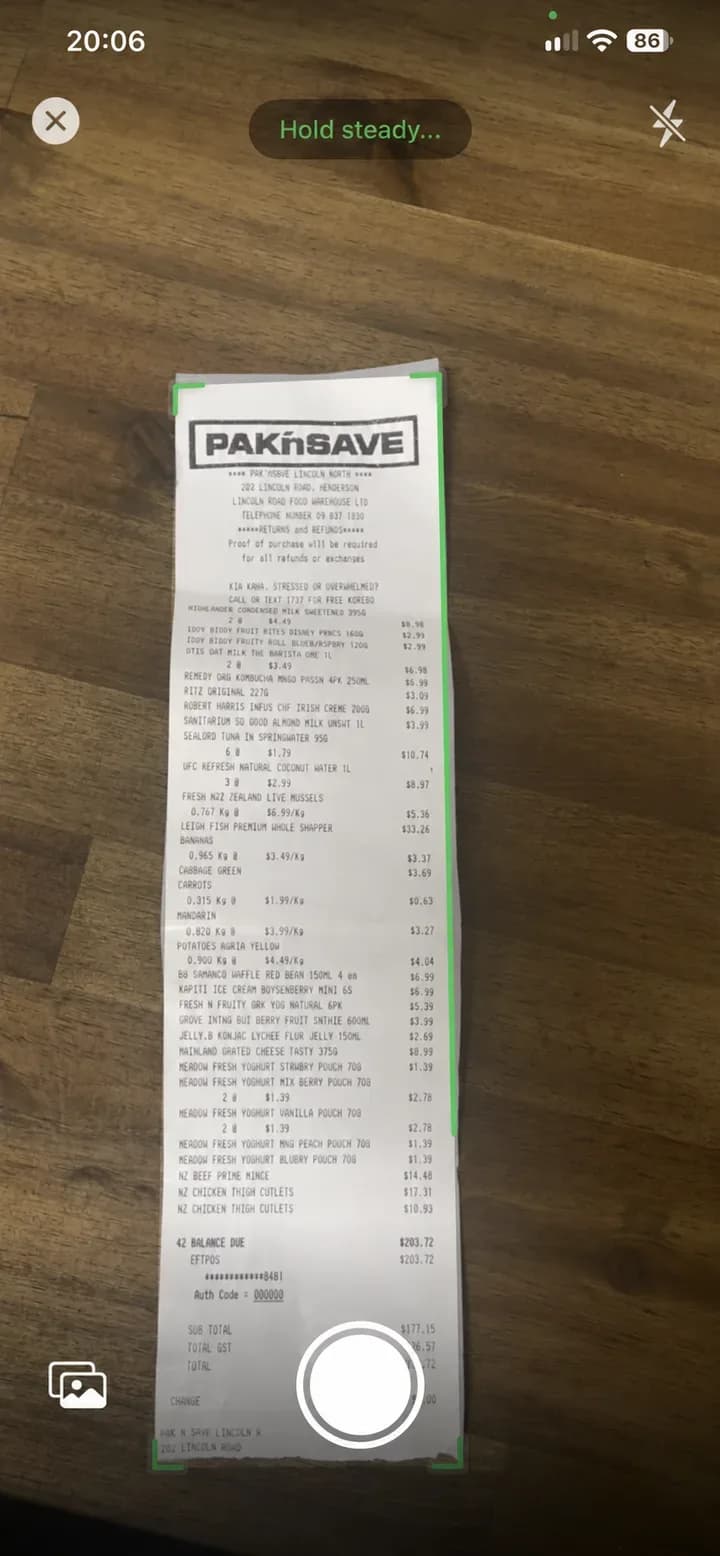
Open Money, then tap Scan bill or receipt in the lower-right corner. Hold the phone above the whole document and capture a clear scan, or use the photo or gallery button to choose an existing image.
Review and submit
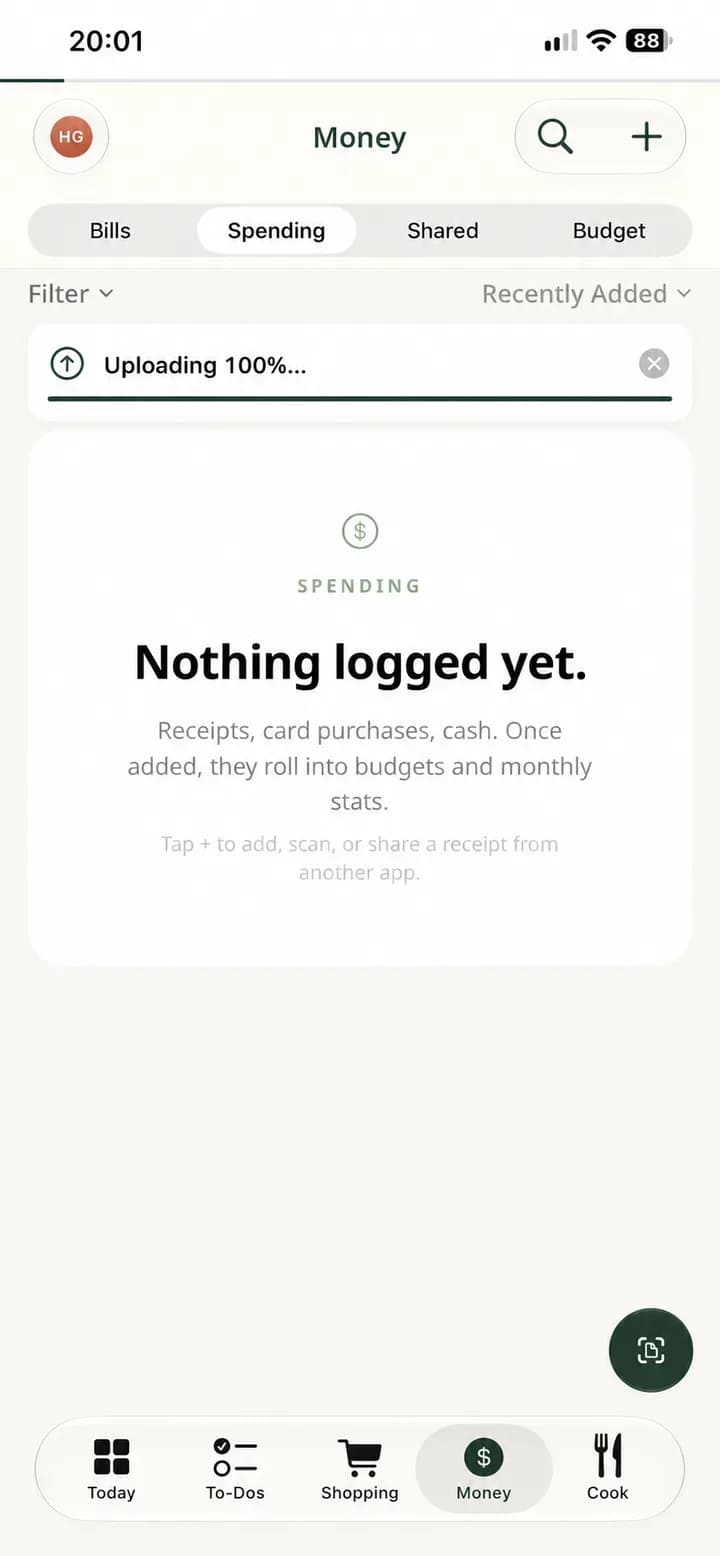
Add any other pages that belong to the same document. Crop, rotate, or remove pages if needed, then finish the scan. Holty uploads and analyzes it in the background.
Find the saved result
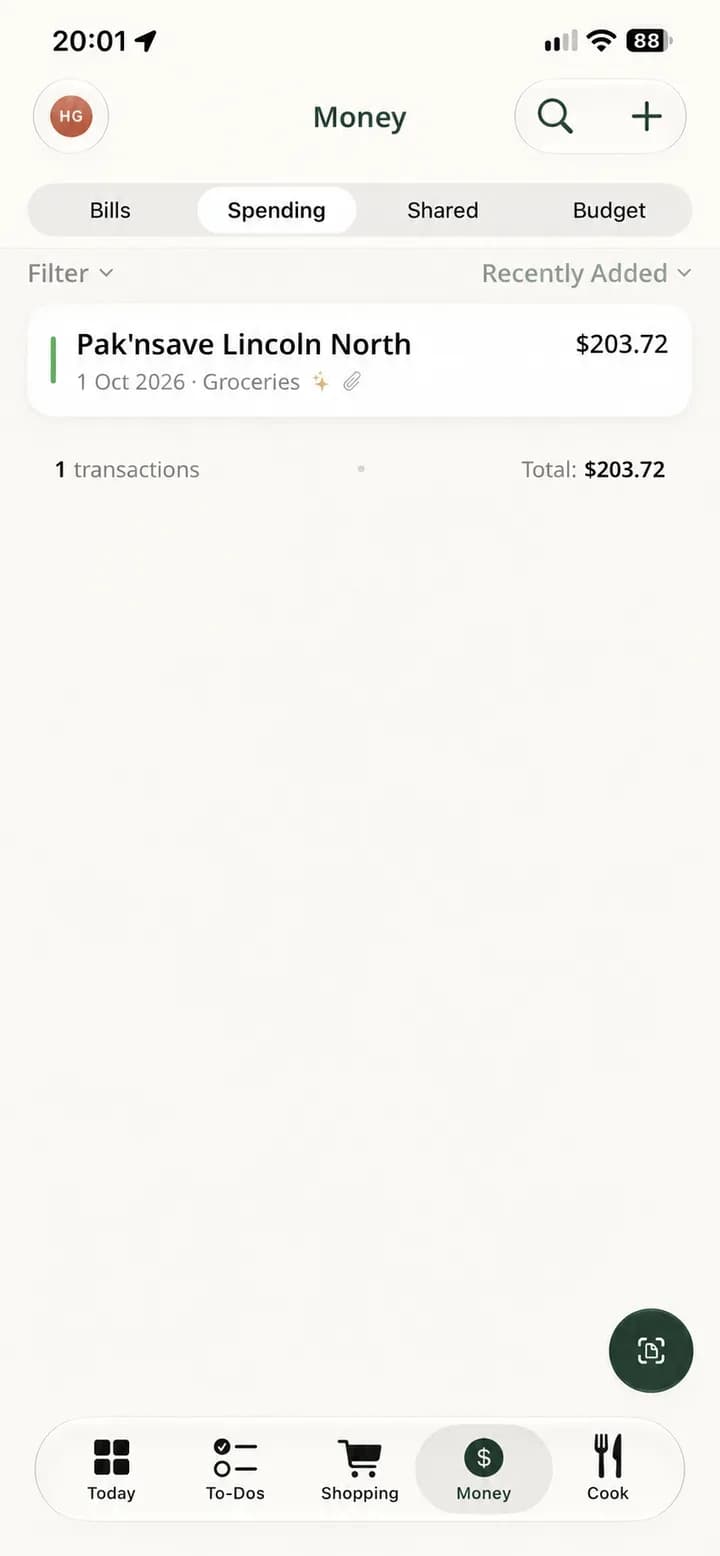
Holty places a purchase receipt in Spending and a bill or statement in Bills. A matching recurring bill may be updated instead of duplicated.
Verify the details
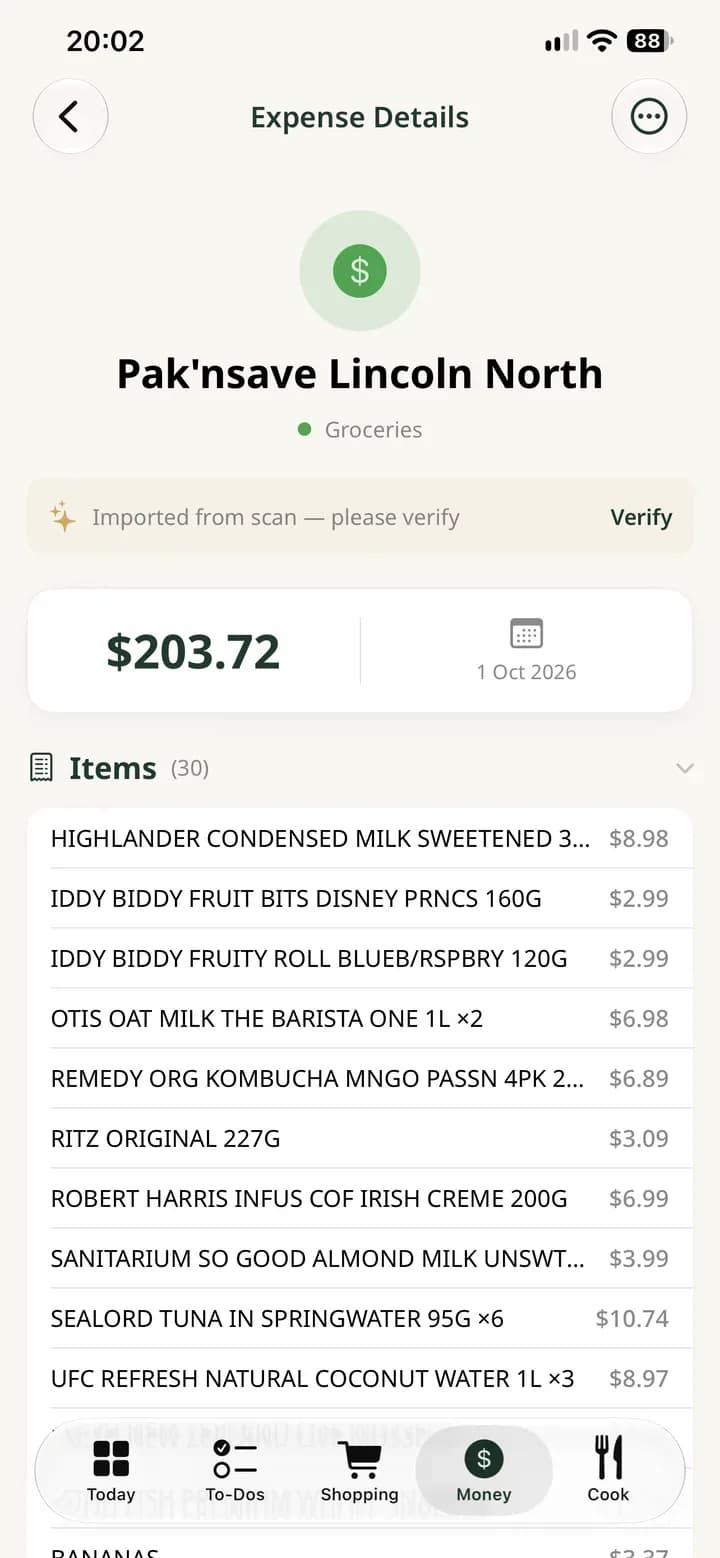
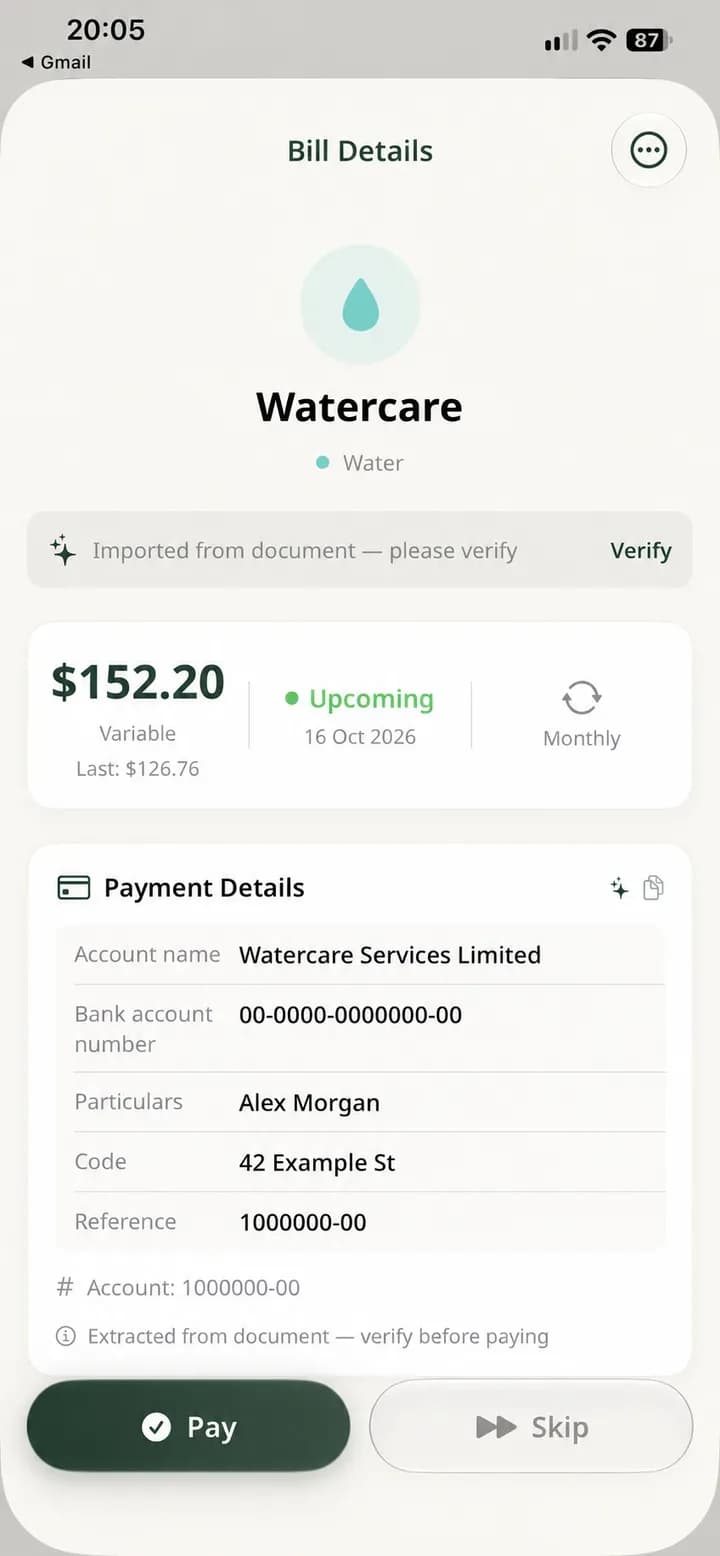
Open the new or updated item. Check its amount, date, category, provider, due date, recurrence, payment details, attachment, and extracted line items where available.
Import from email, Files, Photos, or another app
Share the actual image or PDF attachment. Sharing only the email text or a web link will not send the document to the bill and receipt scanner.
Open the attachment
In Mail, Gmail, Files, Photos, or another app, open or select the bill or receipt image or PDF. Do not share only the message or a link.
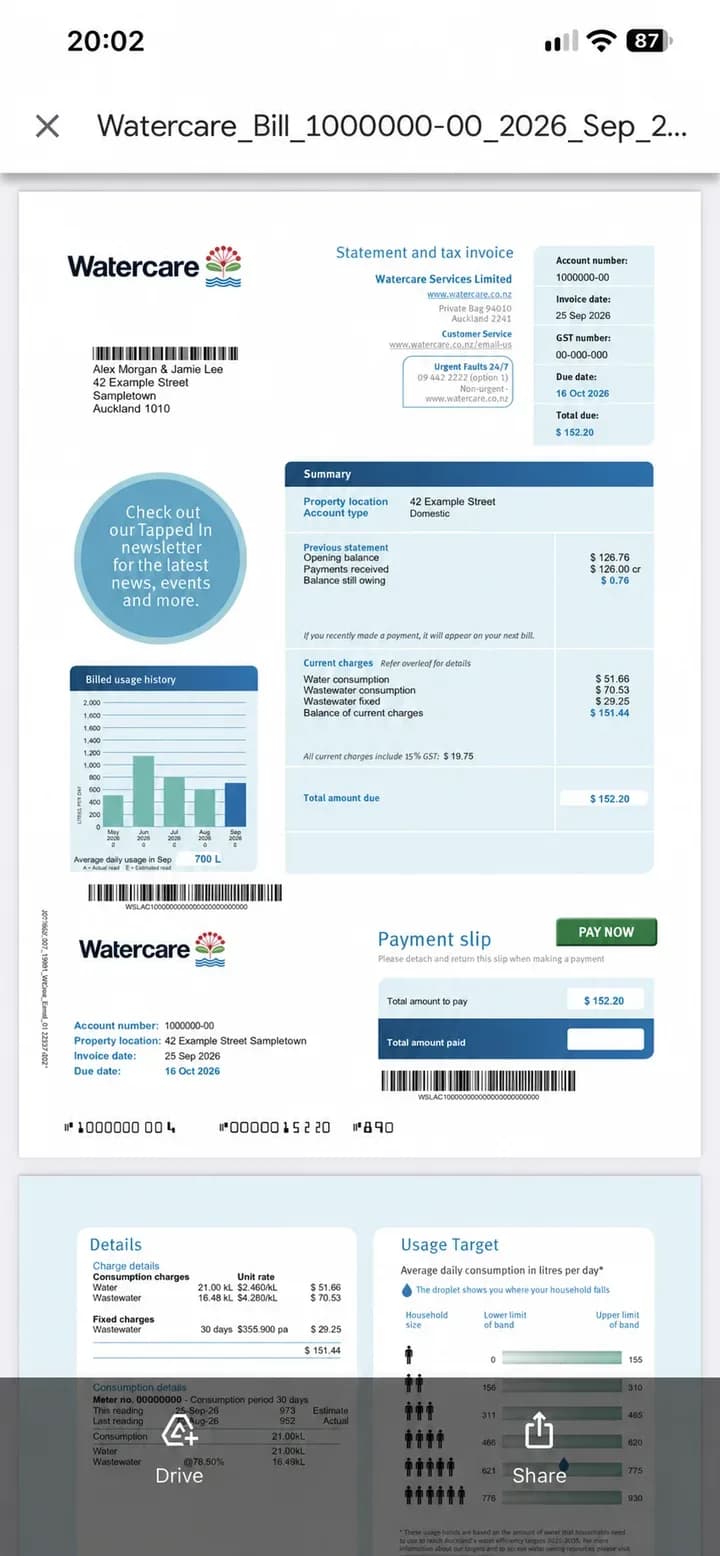
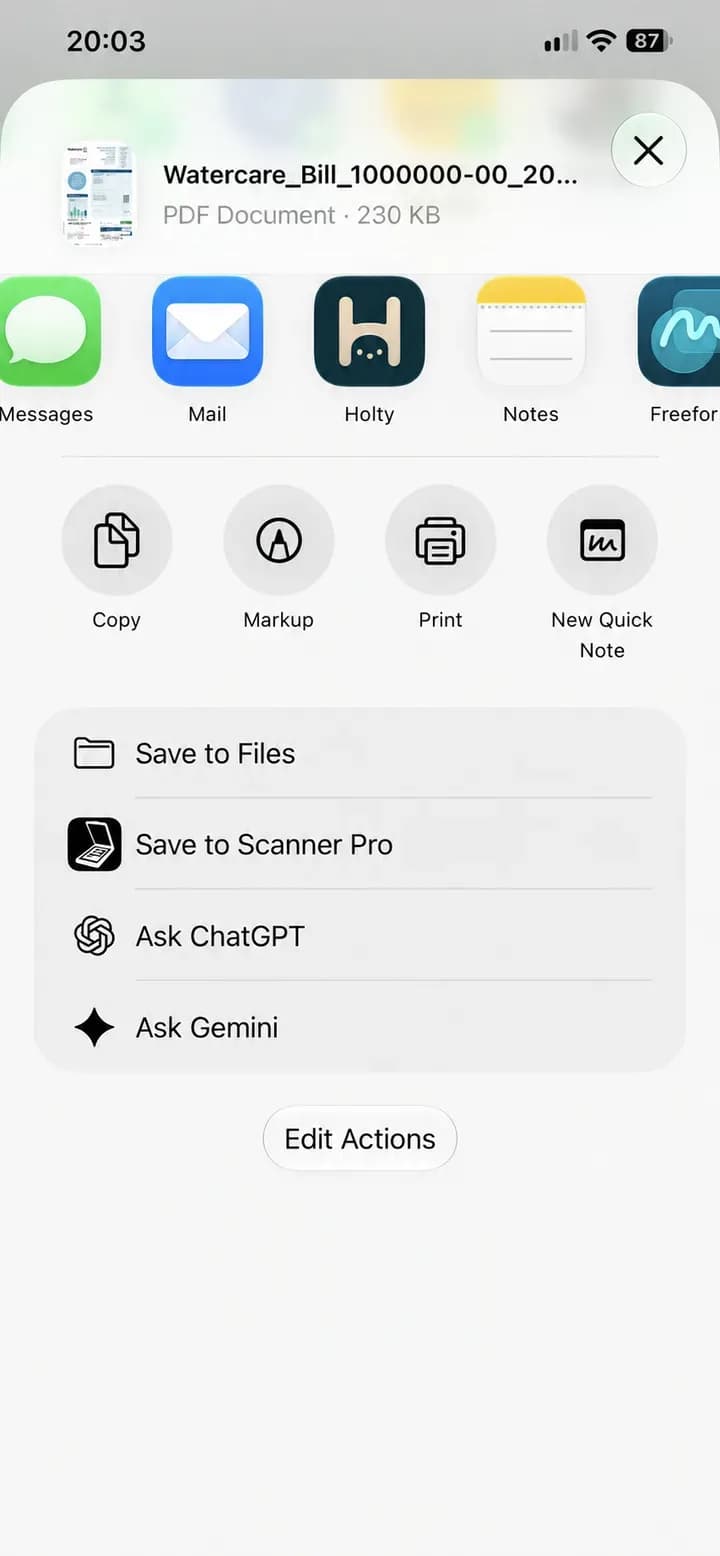
Share it to Holty
Tap Share, then choose Holty or Share to Holty. On iPhone, use More if Holty is not visible in the app row. On Android, choose Holty from the Android share sheet.
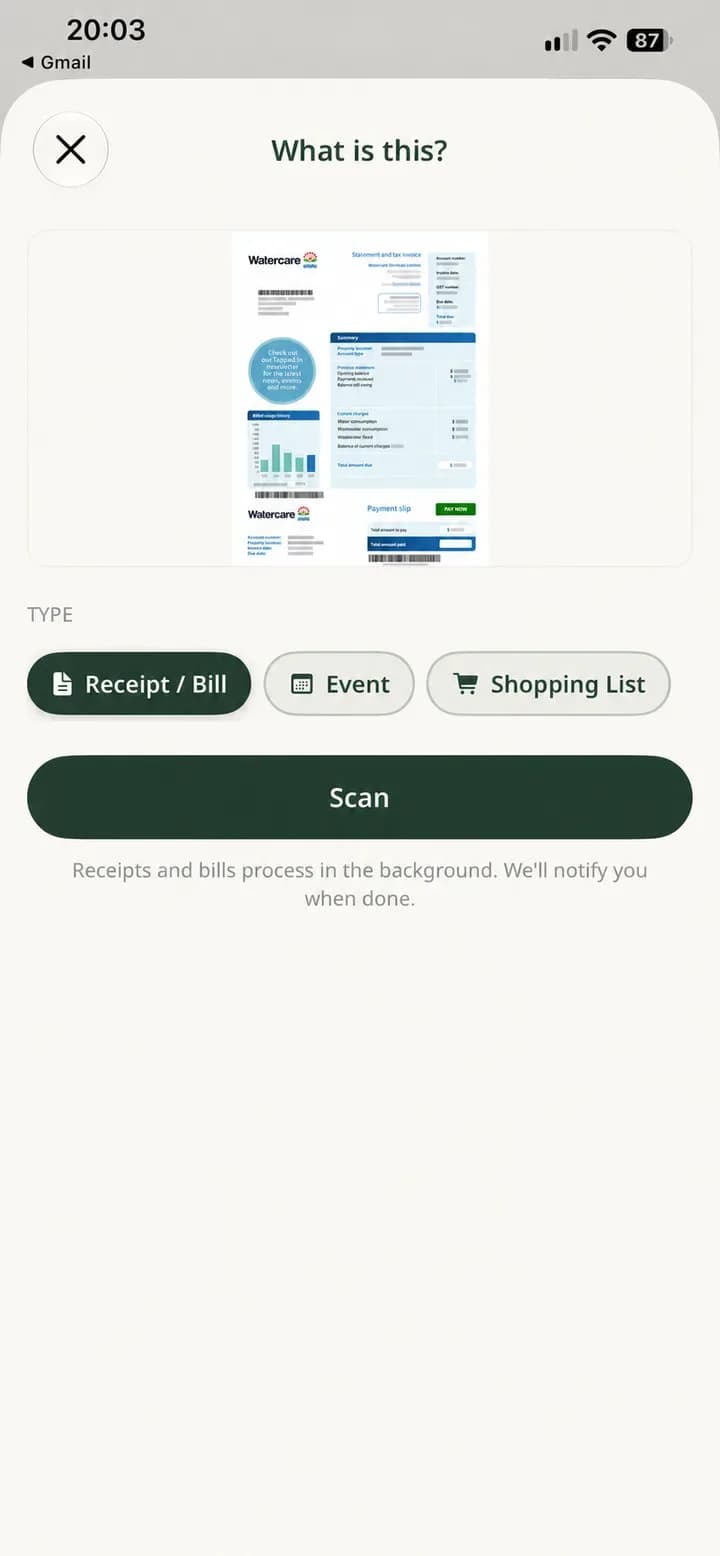
Choose Receipt / Bill
On the What is this? screen, choose Receipt / Bill, then tap Scan. Some versions may also show Auto for images. PDFs always need an explicit type.
Check the result
Holty processes the document in the background. Open Money, check Bills or Spending, and verify the saved result before relying on it.
Get a better result
- Include the whole page, especially the merchant or provider, total, date, due date, and account details.
- Use even lighting and avoid glare, shadows, fingers, and folds over important text.
- Keep the page flat and make sure small print is readable before submitting.
- Scan related pages together, but remove blank pages and unrelated attachments.
- For a PDF on iPhone, choose Receipt / Bill instead of Auto.
Shopping receipts use a different scan
If you are finishing an active shopping trip, use Shopping → Scan receipt. That flow checks which listed items were found on the receipt and can save the shopping expense; the normal Money scanner does not compare against a shopping list.