
Scan an event
Scan a flyer, poster, notice, or screenshot and add its events to your household calendar after reviewing the details.
Holty can read event details from a paper flyer, poster, notice, screenshot, or saved image. It creates editable drafts first, so nothing is added to the household calendar until you review and confirm it.
The screenshots in this guide use a fictional school event and an anonymized creator profile.
Scan the event
These screenshots show iPhone. Android follows the same workflow, although button placement and the system camera or gallery may look different.
Open the event scanner
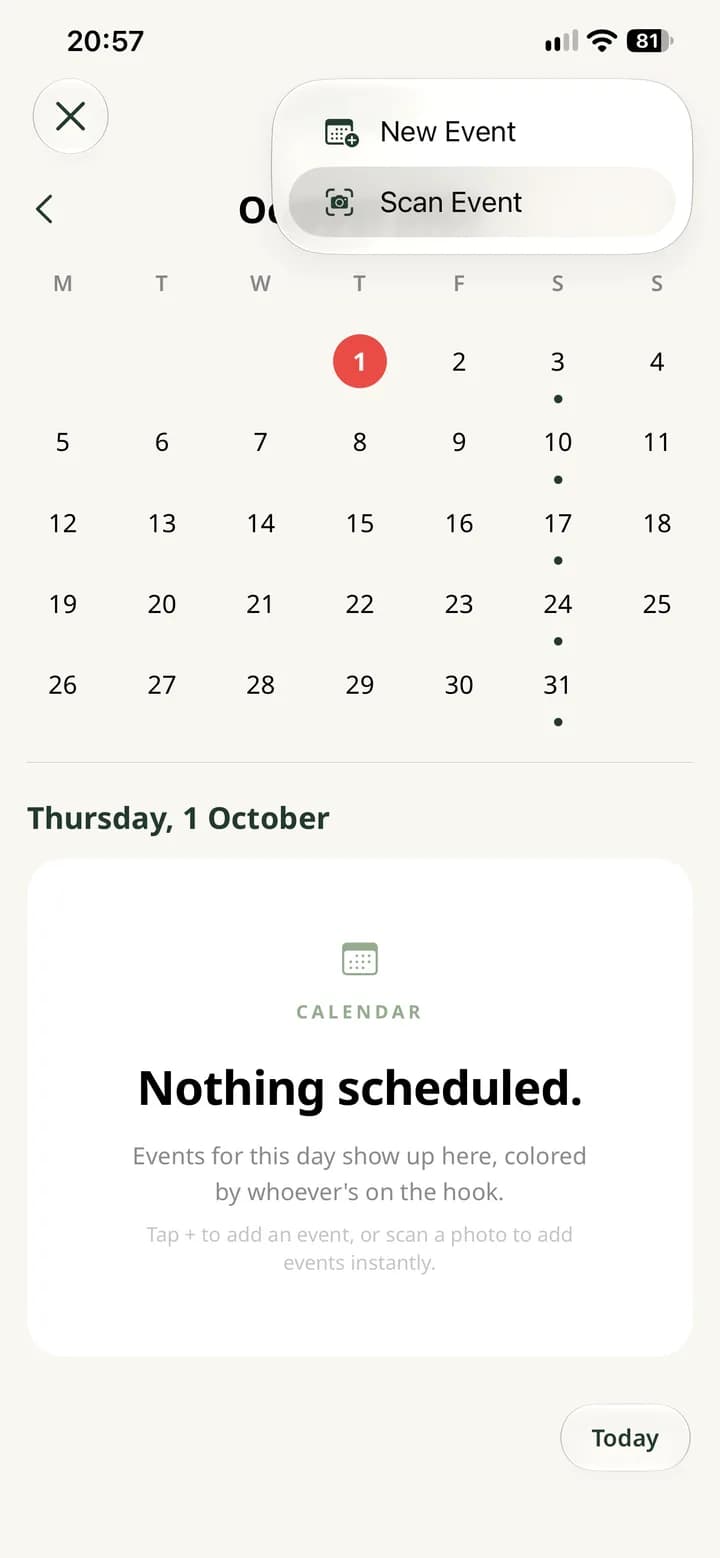
Open Calendar, tap the add button, then choose Scan Event.
Capture or choose the flyer
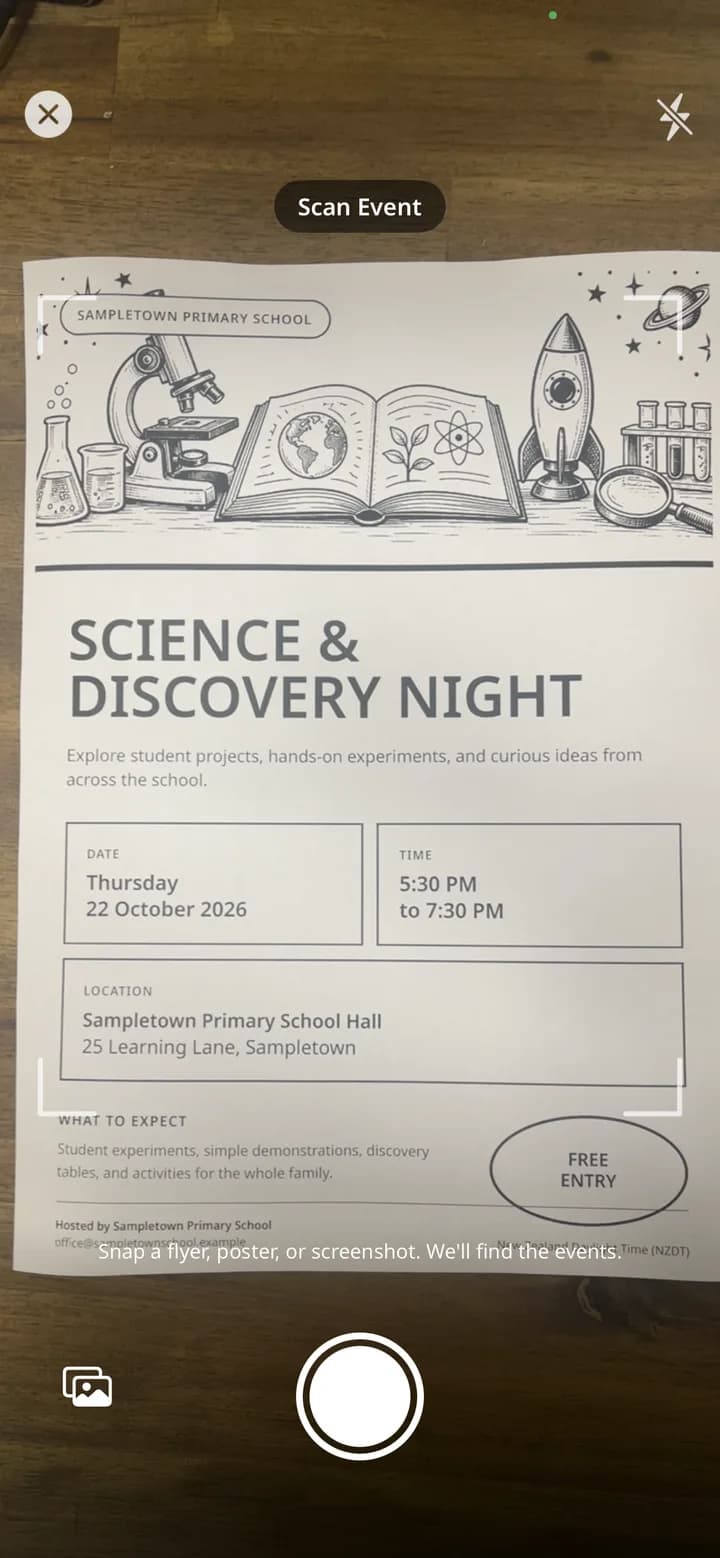
Keep the whole flyer inside the frame so its title, date, time, and location are visible. Hold the phone steady and take the photo. To use a screenshot or saved image, choose it with the photo-library button.
Review the event draft
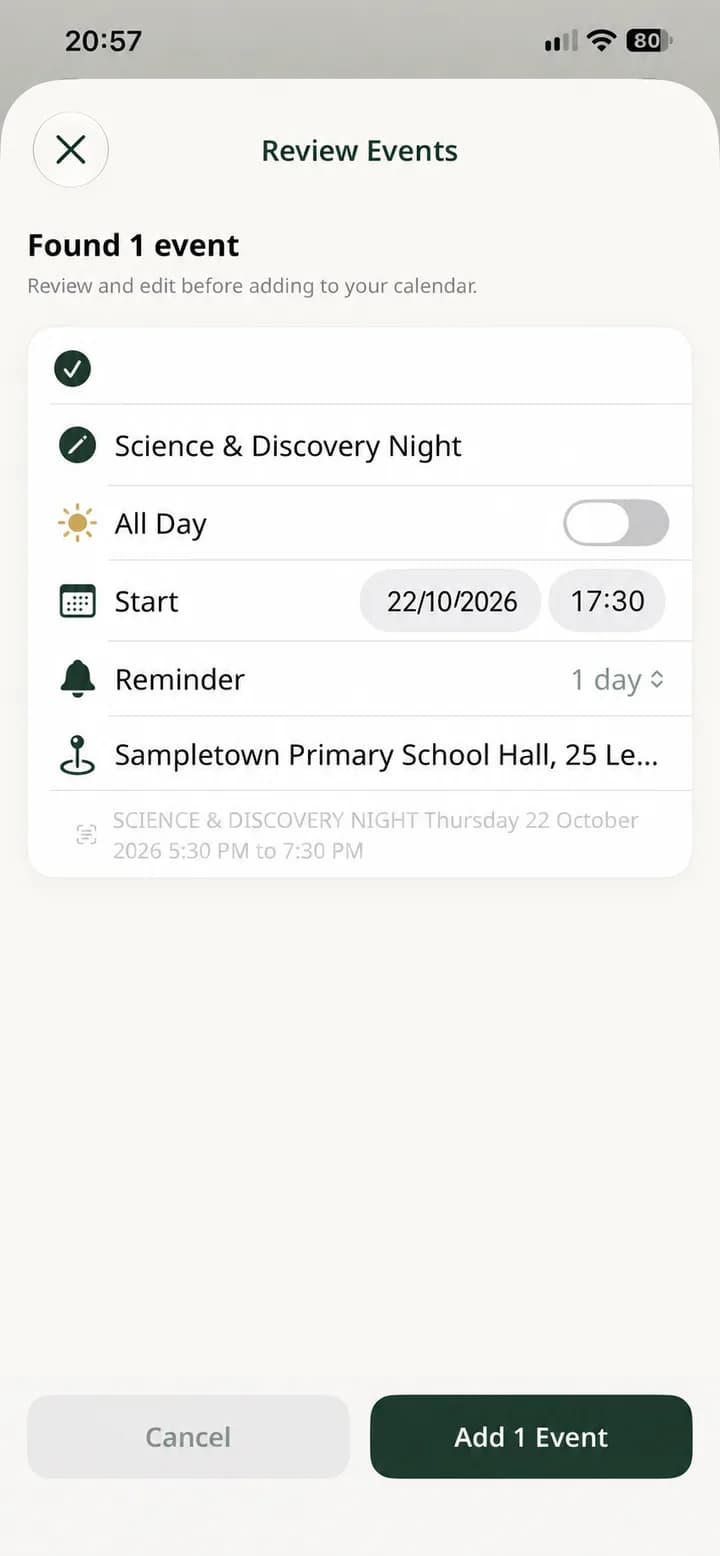
Holty shows every event it found before saving. Check the title, all-day setting, date, start time, reminder, and location. Edit anything that was read incorrectly, and deselect any event you do not want to add.
Add and verify the event
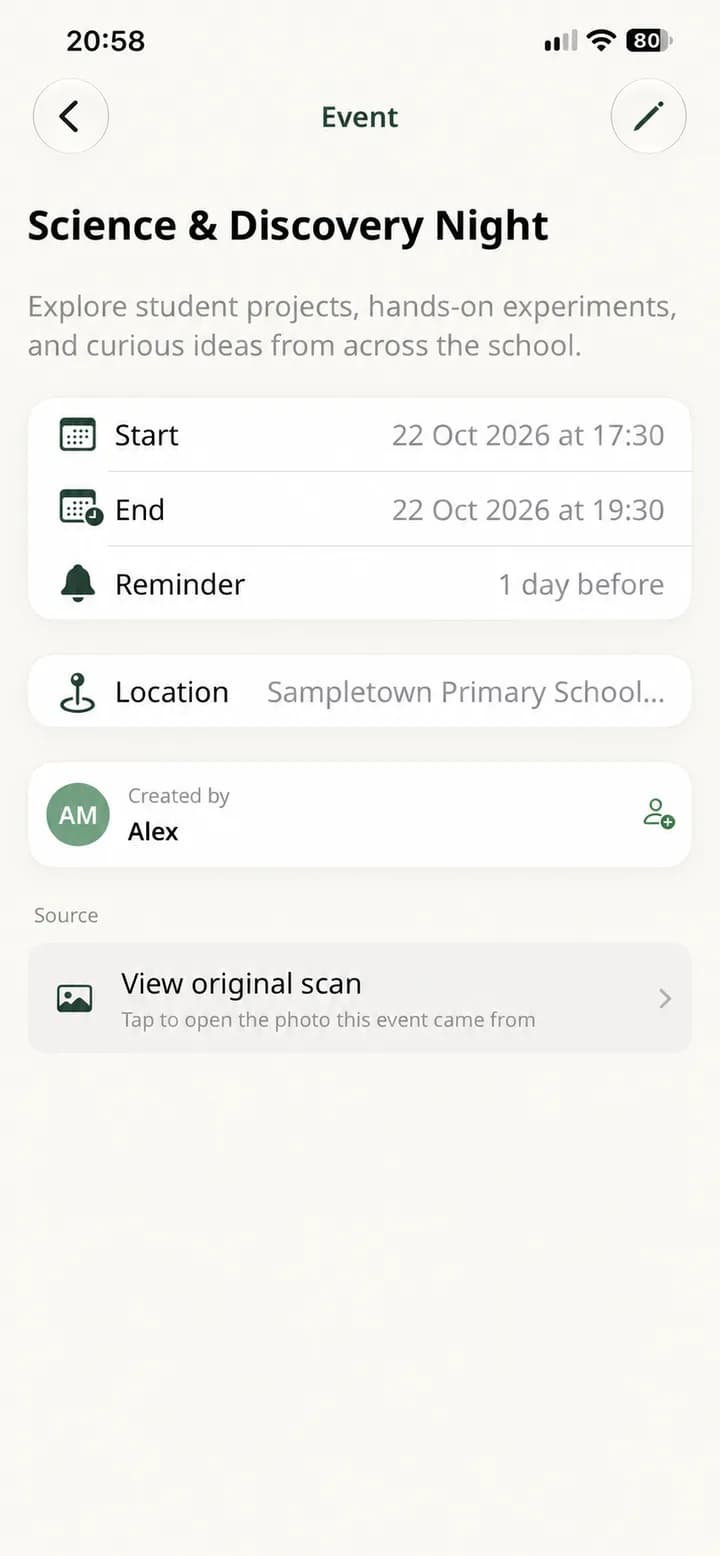
Tap Add Event. Open the saved event to verify its start and end time, reminder, location, and description. View original scan keeps the source flyer available for comparison.
Holty can find more than one event on the same notice. Each result appears separately on the review screen so you can correct, include, or exclude it before saving.