
Know when family arrives or leaves
Use Places and Smart Scenes to update family status or notify household members when someone enters or leaves a saved place.
Save places that matter to your household, such as Home, Work, School, the gym, or a supermarket. A Smart Scene can then run when your phone arrives at or leaves one of those places.
For example, Holty can show that Alex is At Home, tell the household that someone has arrived for school pickup, or update a family member's status when they leave work. The screenshots below use Arrive Home as an example, but the same setup works with any saved place and with both arrival and departure.
The screenshots use the fictional address 42 Example Street, Sampletown and the fictional member Alex.
What can a Smart Scene do?
- Update Status changes the family member's status automatically, such as At Home, At School, or Left Work. Other household members can receive that status as a notification.
- Send Notification sends your own message to everyone in the household or only the people you select.
- Start Shopping opens the household shopping experience when someone reaches a saved shop.
- Surface Tasks brings relevant to-dos forward at the selected place.
Before you start
- Turn on precise location and allow Holty to use location in the background. On iPhone, choose Always. On Android, choose Allow all the time.
- Turn on Holty notifications on family members' phones if they should receive an alert.
- Do not force stop Holty on Android. Reopen the app if it has been force stopped so location monitoring can resume.
Holty uses the phone's geofencing service to detect arrival and departure. It does not continuously record your route.
Save a place
These screenshots show iPhone. Android follows the same flow, although controls and system permission prompts look different.
Open Places
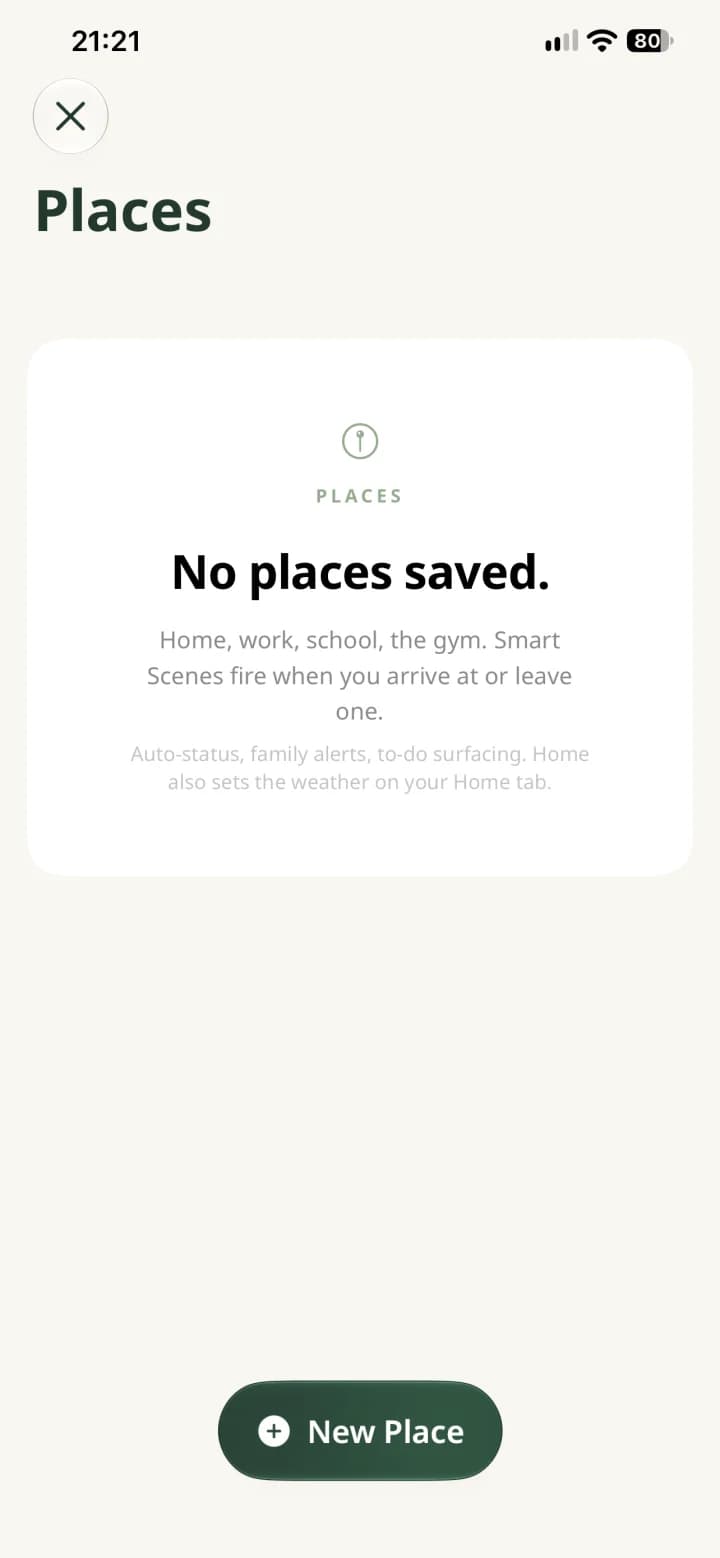
Open the household menu from your avatar, choose Places, then tap New Place.
Search for the address
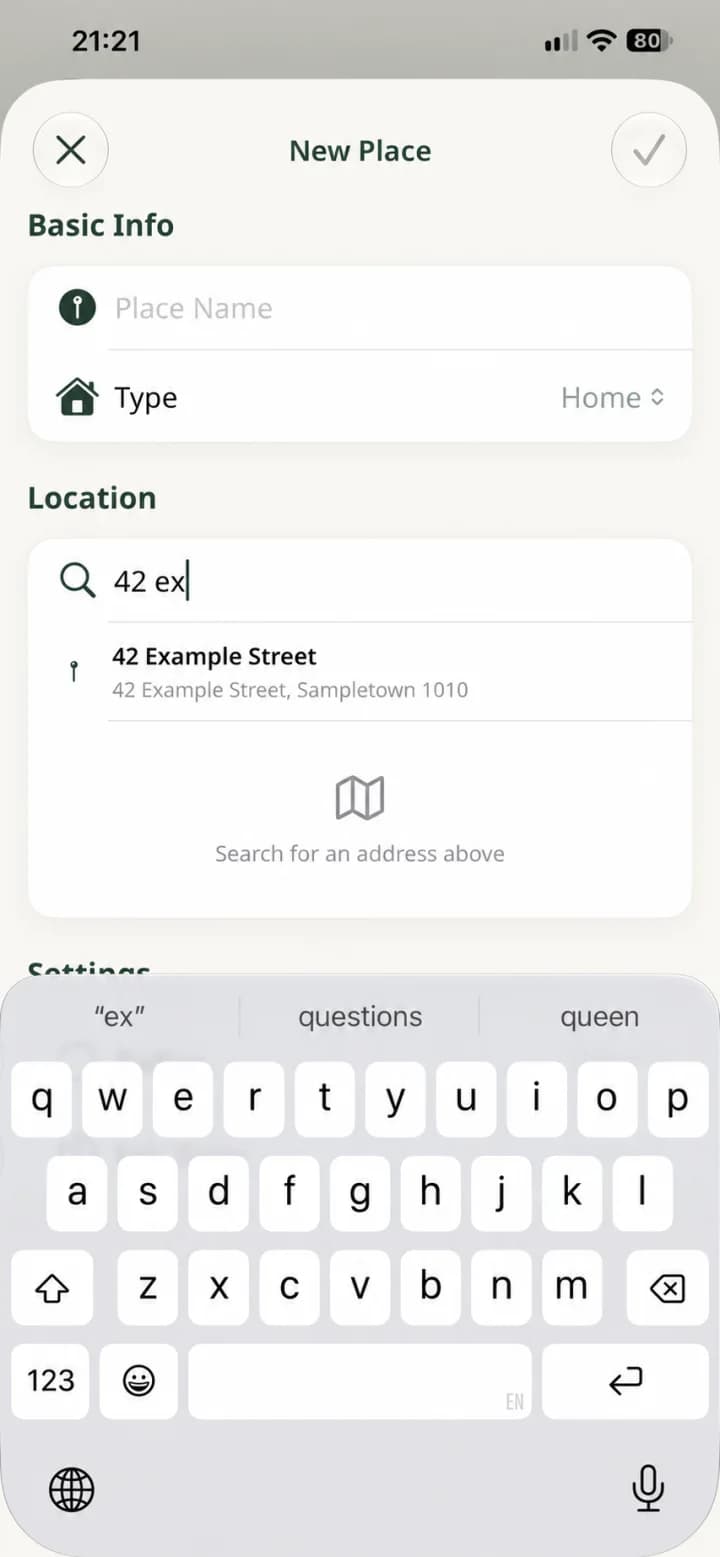
Choose a type such as Home, Work, School, or Supermarket, then search for the address. Select the complete address from the results instead of entering only a place name.
Check the map and save
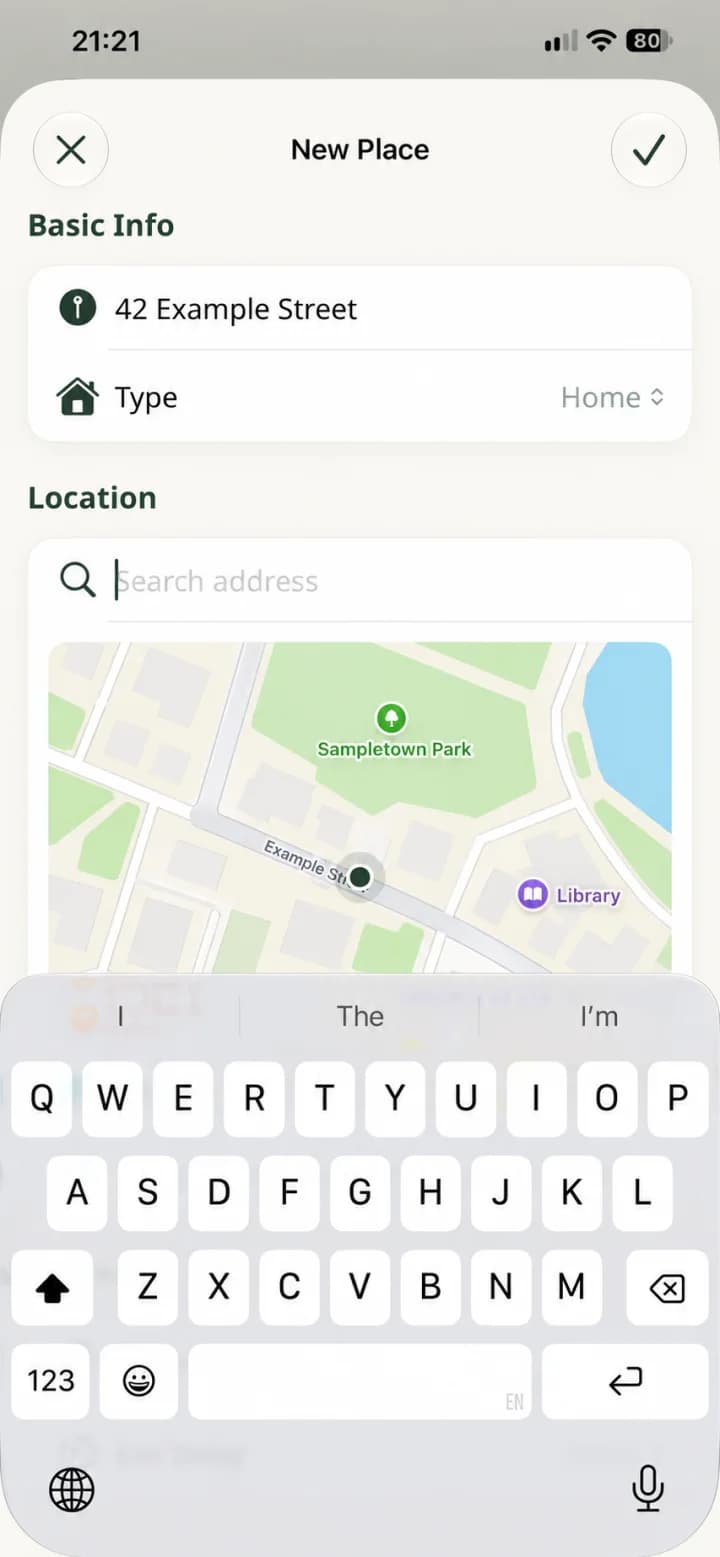
Confirm that the marker is on the right location. Give the place a name your household will recognize, then tap the checkmark to save it.
Confirm the saved boundary
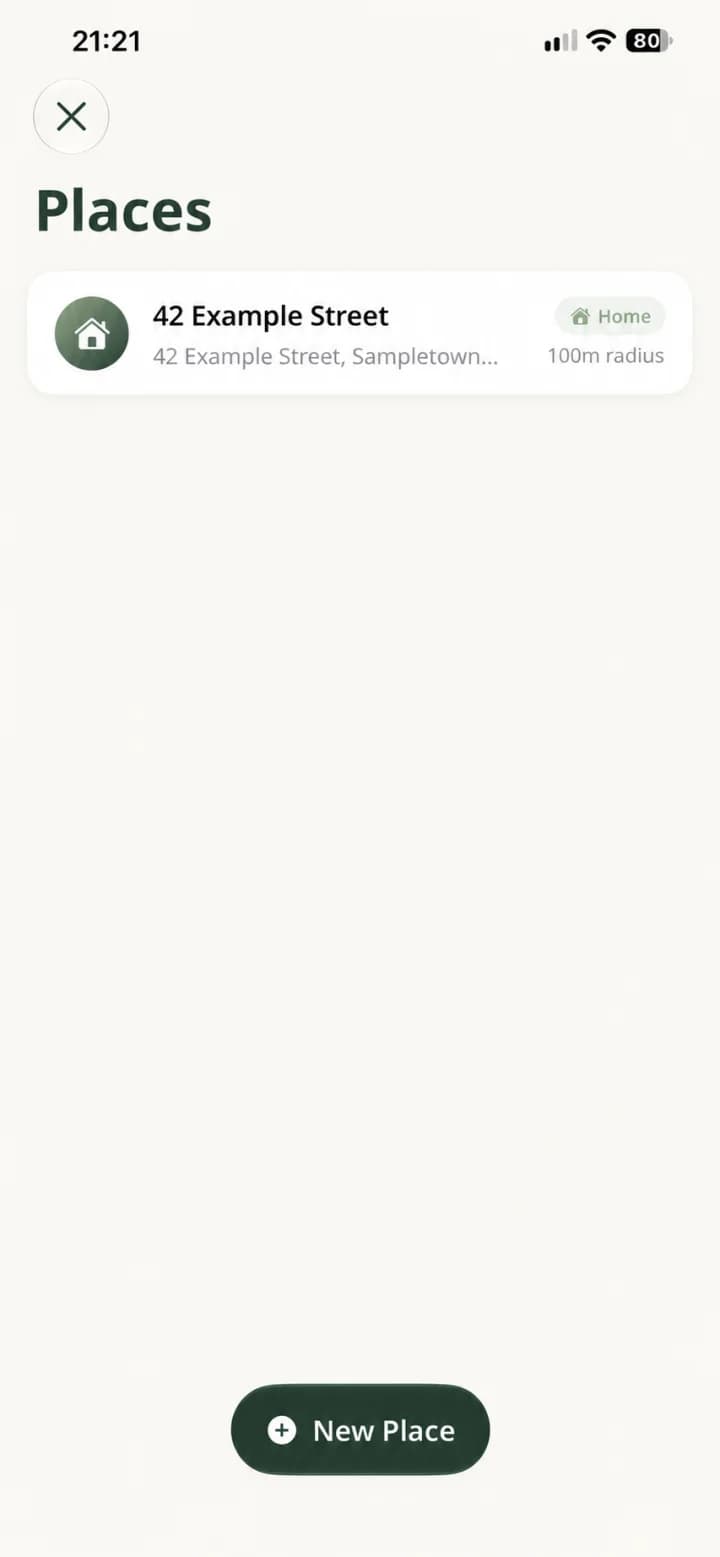
The saved place shows its type and arrival radius. Open it again if you need to correct its name, location, or boundary settings.
Create a Smart Scene
Choose a template or make your own
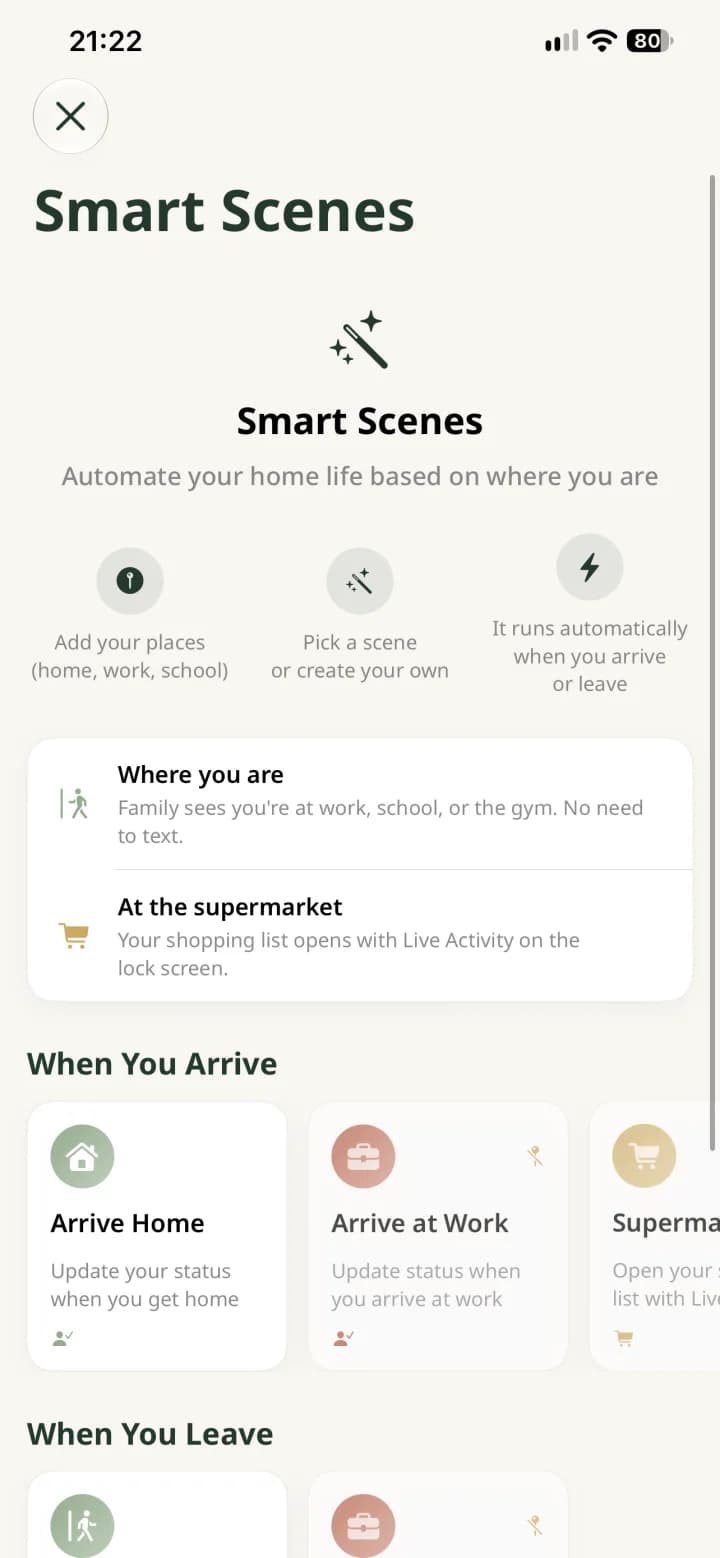
Return to the household menu and open Smart Scenes. Choose a template such as Arrive Home, Leave Work, or Supermarket, or tap New Scene for a different place or message.
Choose when it runs and what happens
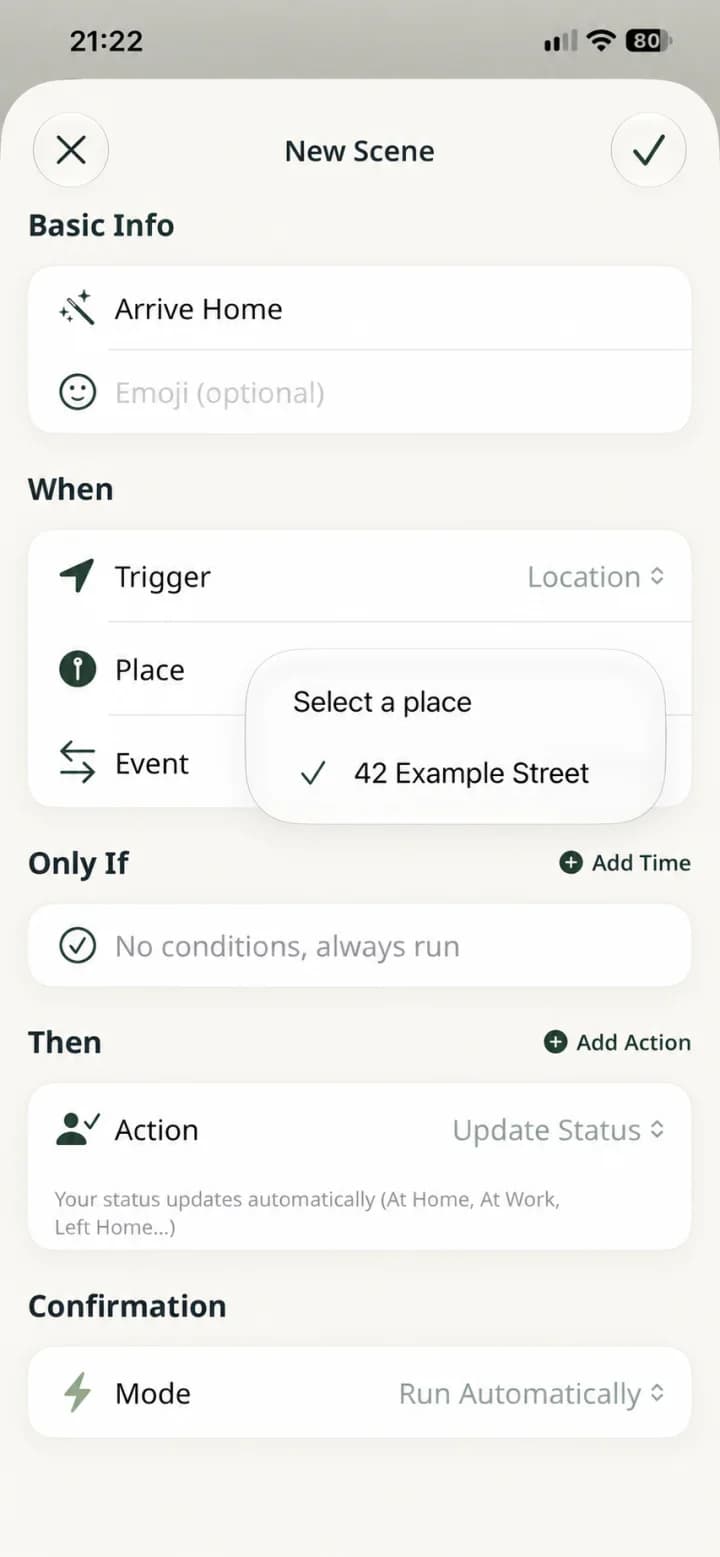
Select the saved place. Set the event to Enter when the scene should run on arrival, or Exit when it should run on departure.
Choose Update Status for an automatic status such as At Home or Left School. Choose Send Notification to write a message and send it to Everyone or selected household members.
Set the confirmation mode to Run Automatically if the scene should run in the background. Use Ask Me First when you want to approve it each time, then tap the checkmark to save.
Enable the scene
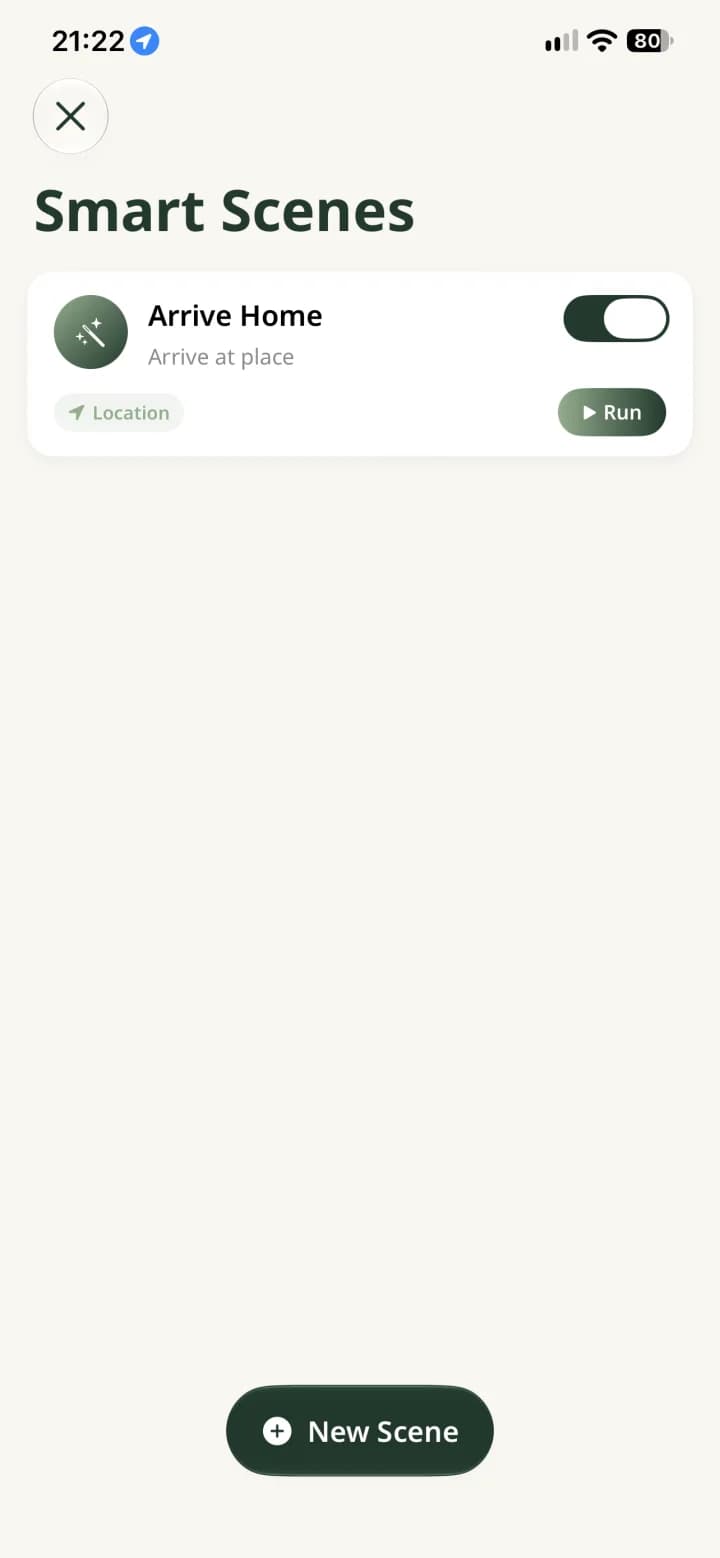
Make sure the switch beside the scene is on. If Holty shows a location warning, follow it to grant precise background location access before relying on the scene.
Check what the family receives
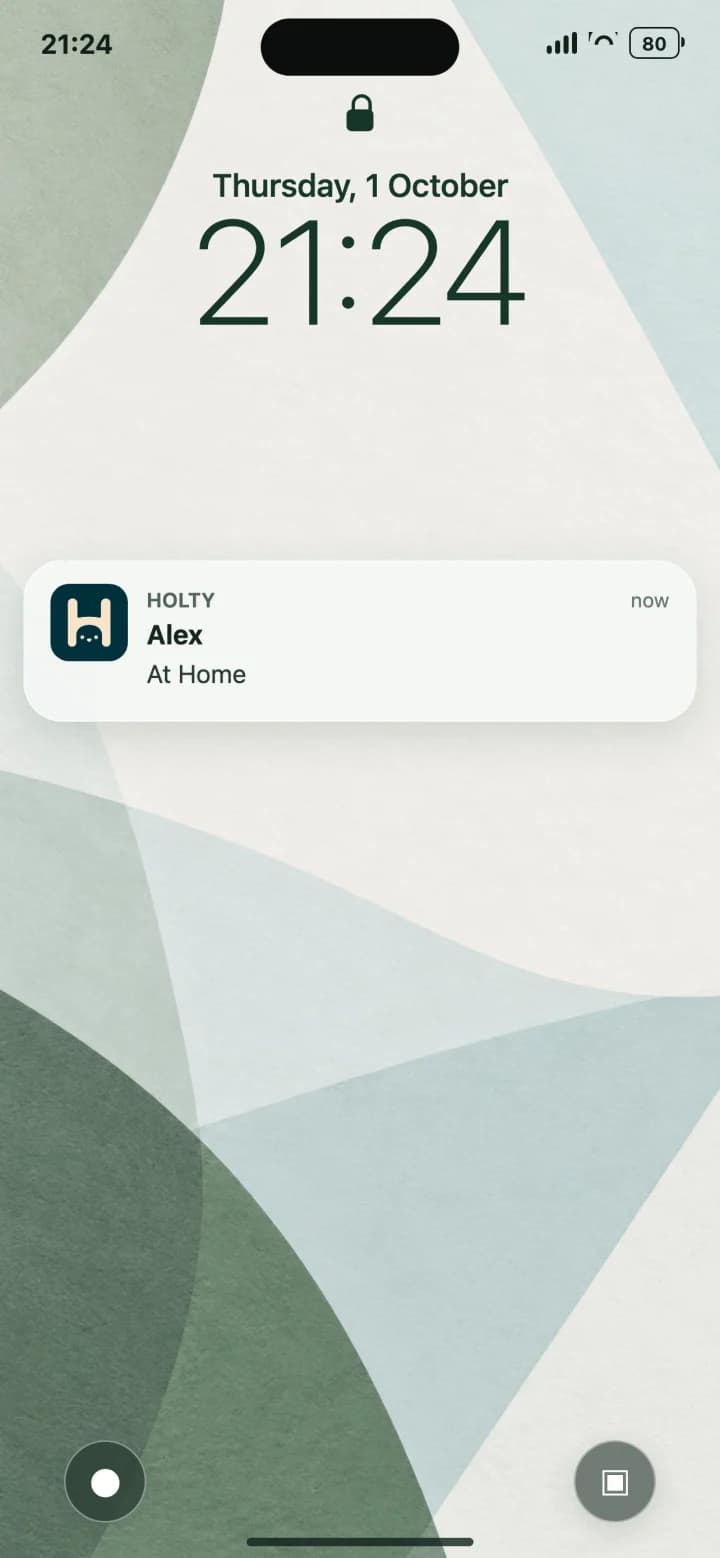
When the phone crosses the saved boundary, Holty runs the selected action. In this example, Alex's status changes to At Home and another household member receives the update. The member who triggered a status update does not receive their own notification.
Arrival or departure can take a short time to register because iPhone and Android manage geofence events in the background. If a scene does not run, reopen Holty and check precise location, background location, device location, notifications, and the scene's enabled switch.