
Scan a health reading
Photograph a monitor or scale, check the extracted values, and save the reading to Apple Health.
Holty can copy numbers from a home health device display so you do not have to type them into Apple Health. It supports blood pressure, body weight, blood glucose, body temperature, and oxygen saturation readings.
For blood-pressure and oxygen-saturation scans, Holty may show a pulse value for comparison, but the optional pulse is not currently written to Apple Health.
Holty only transcribes the display. It does not interpret the result or tell you whether a reading is healthy. Always compare every extracted value with the device before saving it.
How your data is handled
The captured photo is sent to Holty's server and an AI service provider to extract the visible values. Holty does not keep the health photo or reading. Nothing is written to Apple Health until you review the result, tap Save to Apple Health, and allow write access.
Holty does not read your existing Apple Health history. This feature is currently available on iPhone only.
Scan and save a reading
Open Scan Health Reading
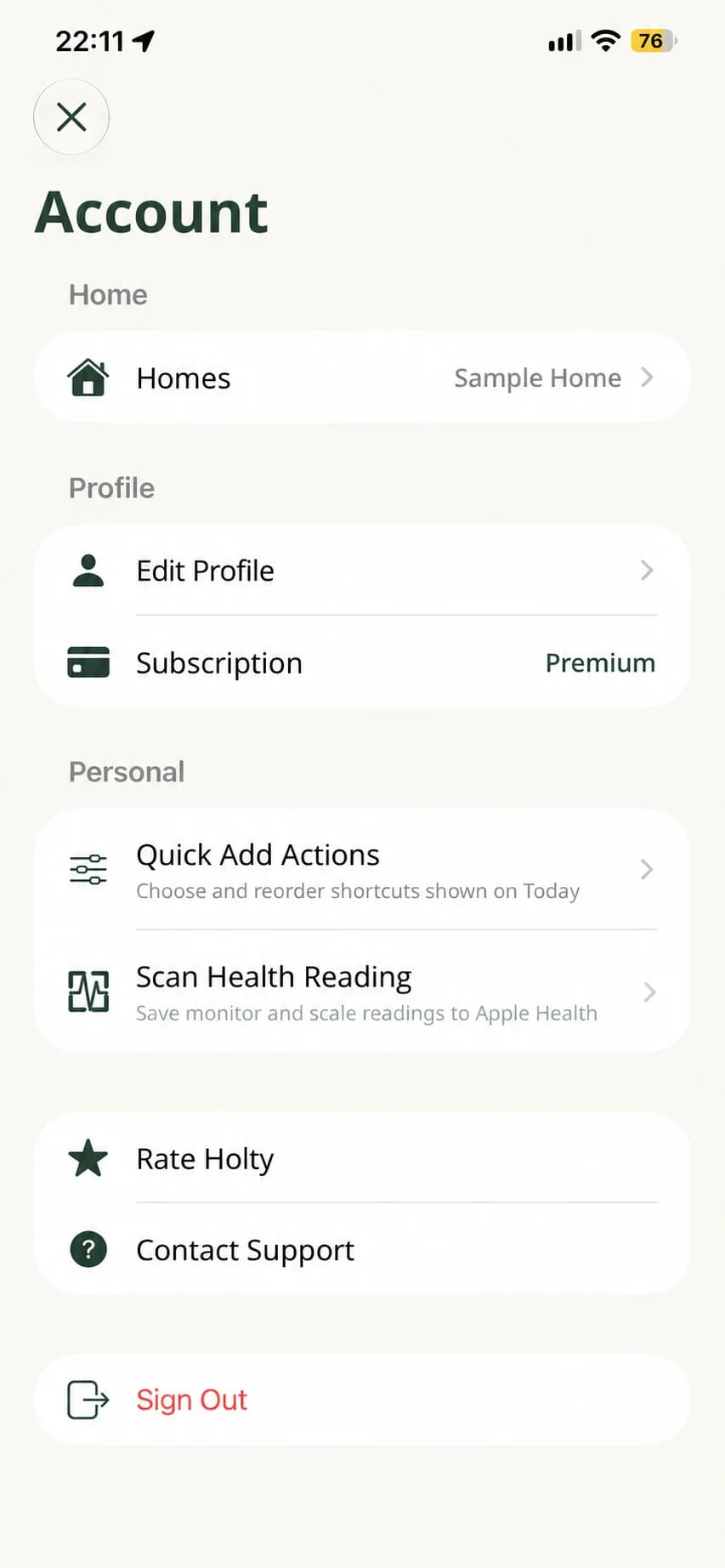
Open your account from the profile avatar, then tap Scan Health Reading under Personal. You can also add Health reading to the Quick Add actions shown on Today.
Photograph the device display
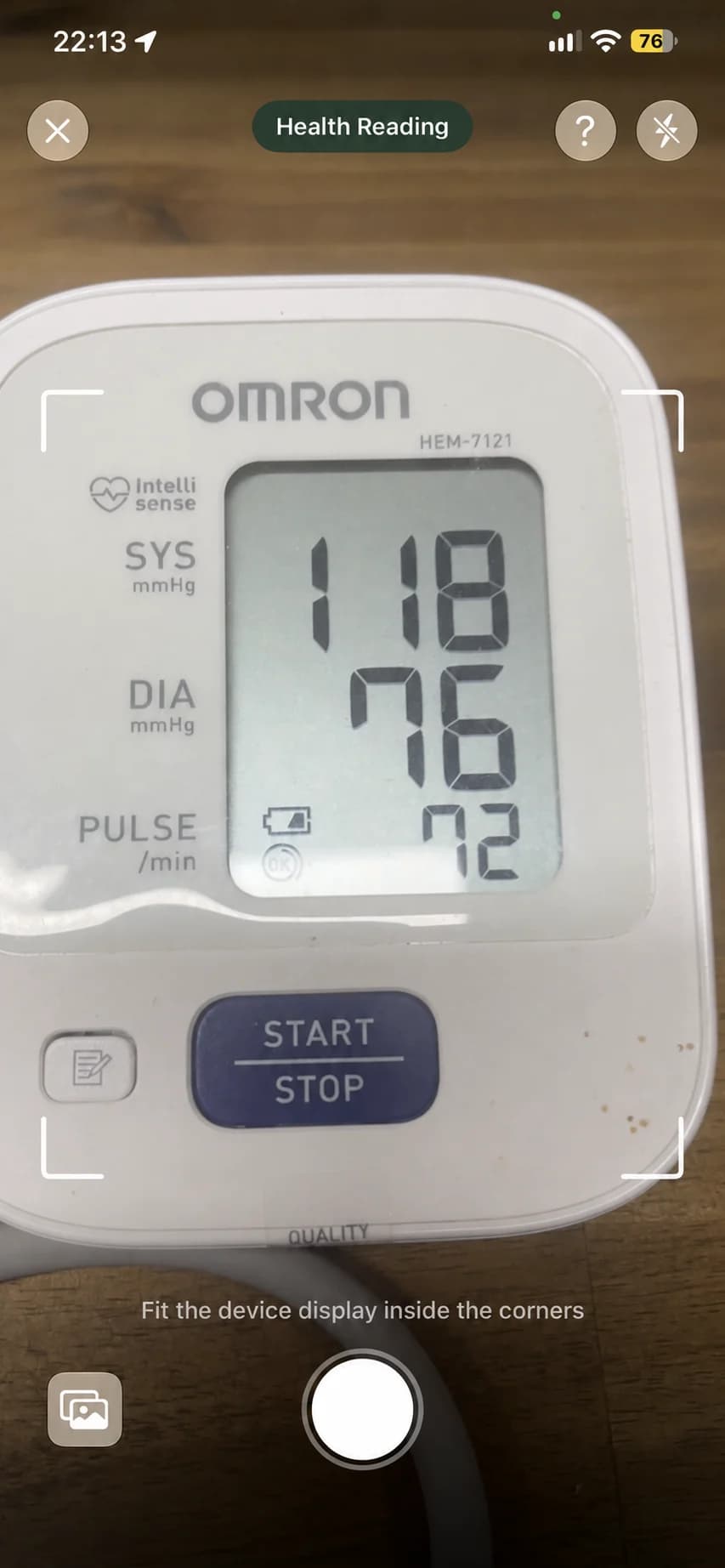
Fit the complete display inside the corner guides. Keep the phone steady, avoid glare, and make sure every digit and unit is readable. Tap the shutter, or choose an existing photo from the photo library.
Check every value
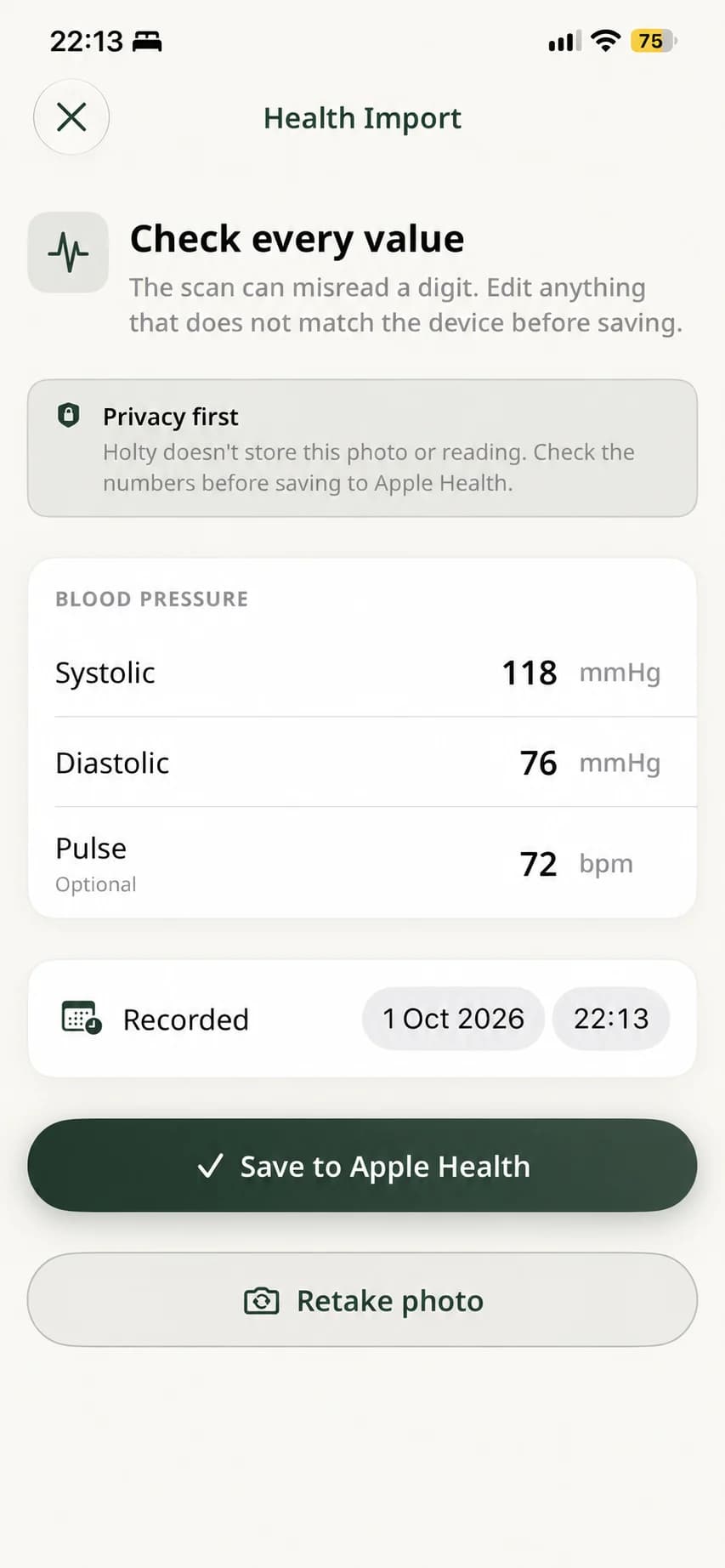
Compare the result with the device. Tap any incorrect number to edit it, and check the recorded date and time. Choose Retake photo if the display was unclear or Holty recognized the wrong reading type.
Save to Apple Health
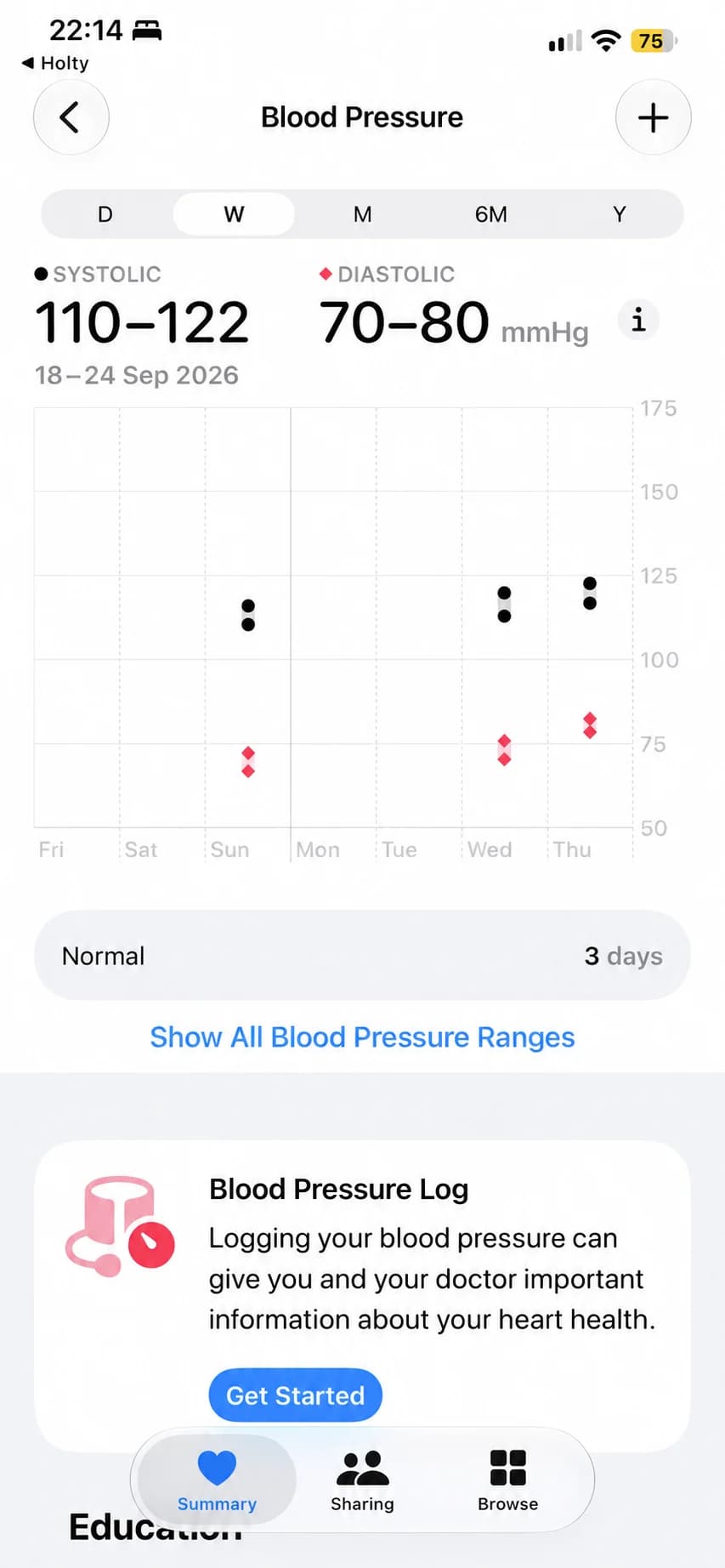
Tap Save to Apple Health. The first time you save each type of reading, iPhone asks whether Holty may write that data. Allow the requested permission, then open the Health app if you want to confirm the saved result.
If Apple Health permission is off
Open Settings > Health > Data Access & Devices > Holty, enable the reading type, then return to Holty and save again. If Blood Pressure is not listed there, open Settings > Privacy & Security > Health > Holty and enable Blood Pressure.
If Holty cannot recognize a display, retake the photo with less glare and a tighter view of the screen. Unsupported readings can still be entered directly in the Health app.